ArtCraft and PhotoCraft Windows install: how do you set it up?
On Windows, PhotoCraft is distributed as an MSI installer or a portable ZIP for x64 and arm64 machines. Download the exact v0.9.0 release from the upstream GitHub page, verify the release information that is available there, choose the package that matches how you manage the machine, and test a copy of a layered file before using it for production work.
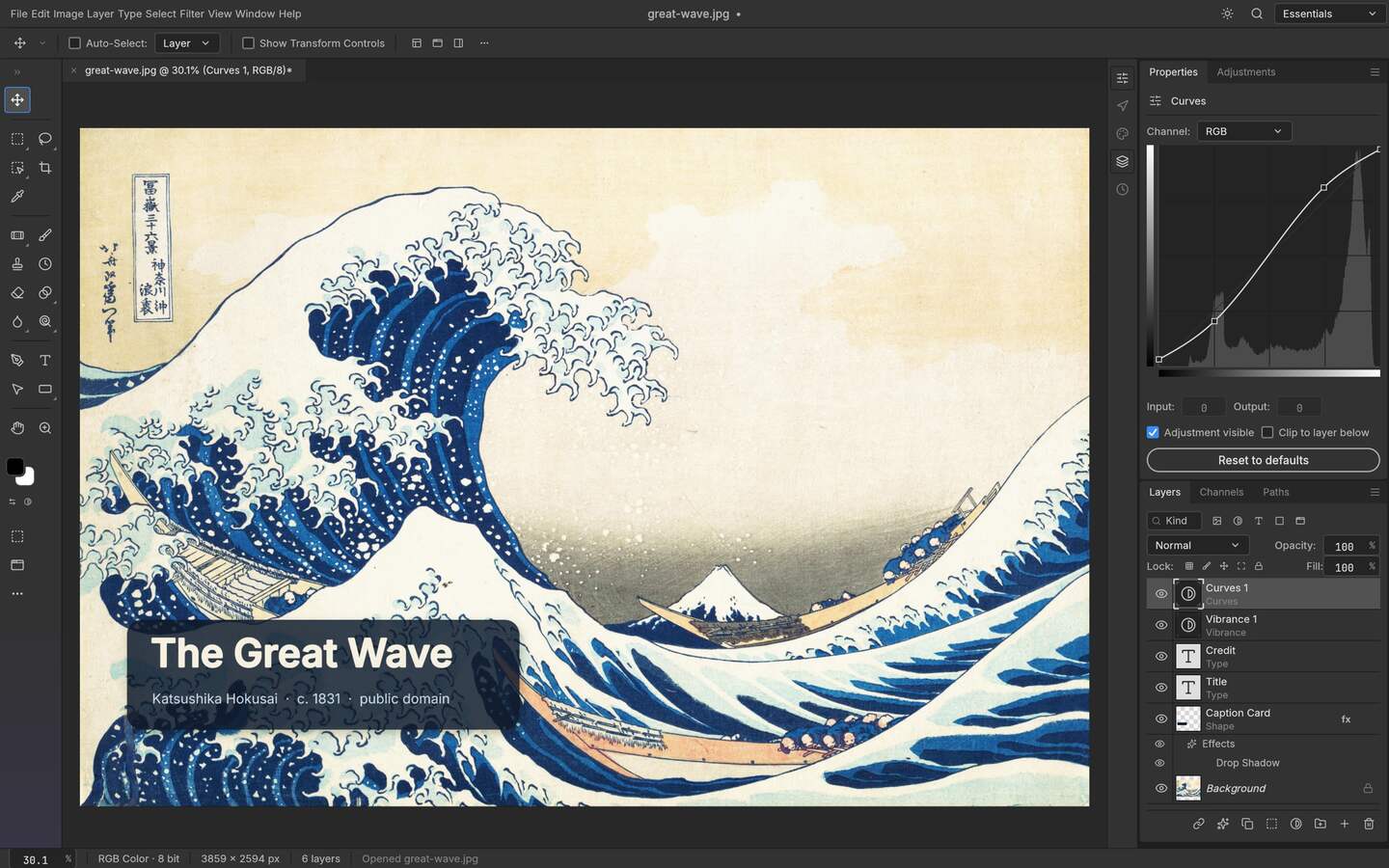
Upstream PhotoCraft interface preview; the artwork shown in the repository is public-domain source material. View the GitHub asset
Before you download
Confirm whether Windows is x64 or arm64. Do not choose an architecture because the filename looks familiar.
Use the upstream GitHub Release linked from OpenCraftTools. This portal does not mirror, rename or repackage the installer.
Keep the release tag and the asset name with the project file so another person can reproduce the environment later.
Have a disposable image and a copy of one layered PSD ready for the first launch. An install succeeding is not the same as a workflow succeeding.
Install with the MSI package
Choose the MSI asset
Use the MSI when the machine is managed or you want the application registered as a normal Windows installation. The exact asset name and architecture remain authoritative on the v0.9.0 release page.
Verify before running
Keep the release page and any published checksum information next to the downloaded file. A checksum match tells you the file is the one upstream published; it does not make an unsigned alpha build a trusted vendor.
Run the installer
Install for the Windows account or scope that matches your machine policy. If Windows SmartScreen appears for a new publisher, stop and confirm the repository, release tag and checksum before choosing the additional run option.
Launch a disposable test
Open a sample PNG, create a layer, save the project and reopen it. Then try a copy of a PSD rather than the only copy of a client file.
Use the portable ZIP instead
The portable build is useful when you cannot change the system installation, need to keep two release tags side by side or want to test the editor from a project folder. Extract it to a path you control, keep the release notes with the folder and create a shortcut only after the first launch works. A portable package is still executable software: the same repository, release and checksum checks apply.
First-launch checks that matter
Symptom-led checks
What you see
What it tells you
Next action
SmartScreen warning
Windows has little reputation data for a new build or publisher
Confirm the upstream URL, tag and checksum before proceeding
Black canvas or flicker
The selected GPU path or driver may not support the required feature set
Try the software path if available, update the driver and record the result
PSD opens flat
The file may use a feature PhotoCraft does not round-trip yet
Compare the layer tree with the original and keep the source file untouched
App closes during a large file
The file, memory pressure or GPU path needs isolation
Retry with a smaller copy and a different renderer before blaming the installer
What a successful Windows test looks like
A useful acceptance test is small and repeatable: the selected build launches, a PNG opens, a new layer and mask can be created, a copy of a PSD retains the structure PhotoCraft supports, the project saves and reopens, and a flat PNG export matches the canvas. Record Windows version, architecture, PhotoCraft tag, GPU driver and the file types tested. This turns “it works on my PC” into a result another person can check.
MSI, portable and project folders
The package choice is about control and repeatability, not about a different editing engine. An MSI is convenient for a workstation where applications are managed centrally and shortcuts or file associations are useful. A portable folder is easier to copy between test machines and makes it obvious which release you are running. For either choice, keep working files outside the application directory, create a separate test folder and label screenshots with the release tag. That small separation makes it possible to remove one build without deleting a project or confusing its saved settings with another build.
Do not mistake installation for compatibility
Windows installation can be perfectly successful while a particular PSD, font, colour profile or GPU driver still exposes a limitation. Test the file types your workflow actually exchanges: one ordinary PNG, one layered PSD with a mask, one text layer using a known font and one export that another application can open. If a test fails, keep the original, write down the exact symptom and move to the troubleshooting guide. A clean install is only the first gate; a reproducible document round trip is the useful result.
Keep a small installation record
For a team machine, save the release URL, asset name, architecture, installation type and first-launch result in the project notes. If the portable folder is copied, record its location and permissions; if the MSI is used, record who installed it and where the application was found. This is especially valuable when Windows updates a driver or when an alpha release changes its document model. A short record lets you reproduce the test instead of reinstalling blindly and makes an upstream report much easier to understand.
Who this is for
Installing PhotoCraft on a Windows workstation
Testing MSI and portable builds side by side
Opening a PSD on Windows without risking the original file
Preparing a reproducible local editing setup
Limits worth knowing
PhotoCraft is early alpha, so an installer that launches does not prove every PSD effect or GPU path is production-ready.
OpenCraftTools is not the official distributor and does not certify the Windows binary; the upstream release remains authoritative.
Windows SmartScreen behavior, drivers and file associations depend on the machine, policy and release being tested.
Questions this guide gets asked
01
Should I use the MSI or portable ZIP?
Use MSI for a normal or managed installation. Use the portable ZIP when you need a user-controlled folder, side-by-side release testing or a machine where you cannot install system-wide. Both still need the same upstream and checksum checks.
02
Is PhotoCraft an official Windows Photoshop replacement?
No. PhotoCraft is an independent open-source editor in early alpha. It can be useful for layered work, but plugin compatibility, specialist production features and exact PSD behavior must be tested with your files.
03
What should I do if Windows blocks the installer?
Do not bypass the warning blindly. Confirm the GitHub repository, release tag, asset and published checksum first. If those do not match, delete the file and download it again from the upstream release.
04
Can I install two PhotoCraft versions?
The portable build is the safer way to test two tags side by side. Keep each folder and project record labelled with its release tag, and never test an alpha upgrade only against the original client file.