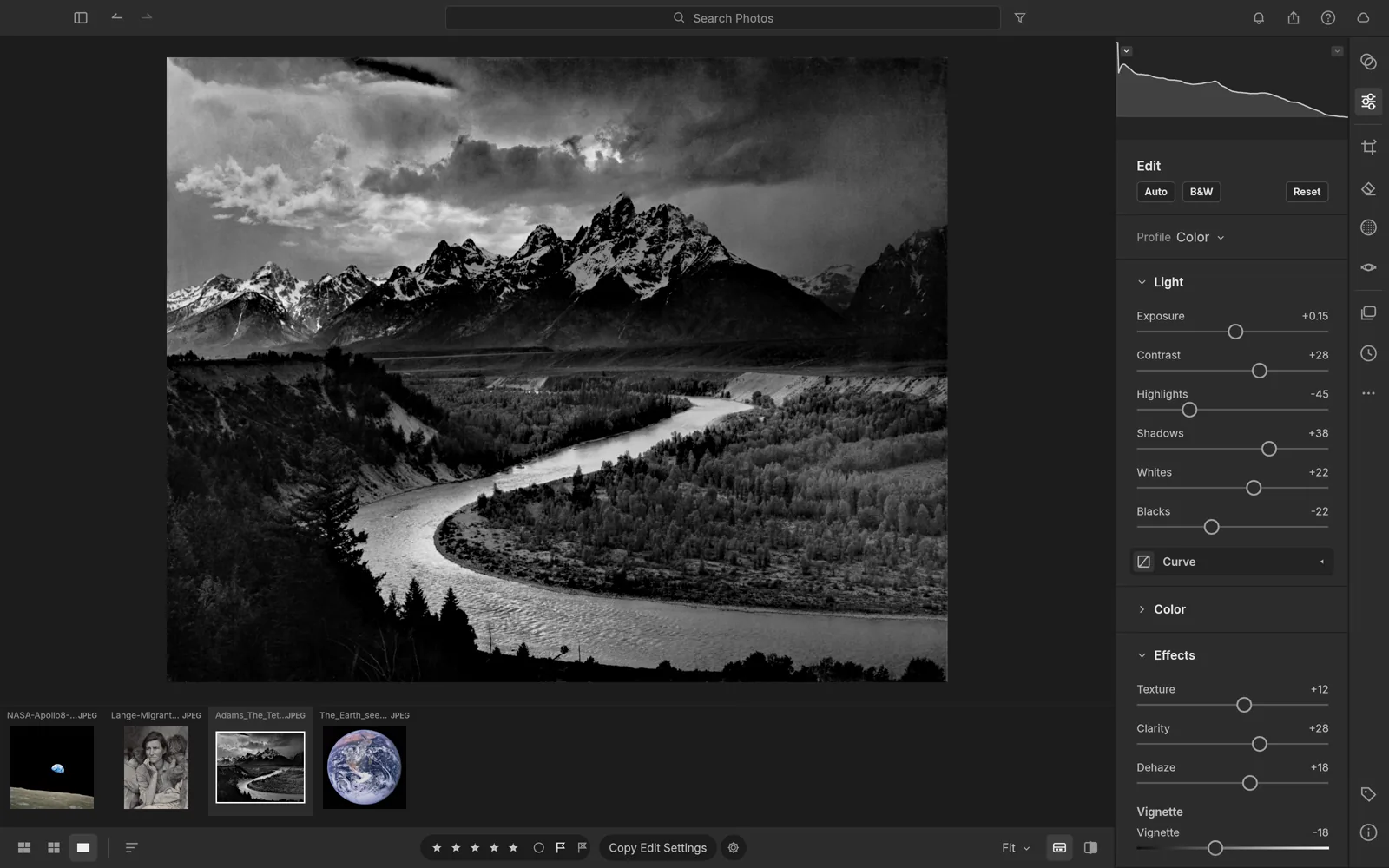
A practical guide to LightCraft online
How to evaluate LightCraft online before you commit a real project
LightCraft online is most useful as a decision-making workspace. It lets you inspect the interface, load a safe sample and learn whether the browser path matches the way you actually work. That is a more honest promise than calling every WebAssembly build a complete desktop replacement. OpenCraftTools keeps the route, release label and upstream source visible so you can tell which part is the browser editor and which part is the surrounding documentation.
The right first session is deliberately small. Use the page to explore RAW photo review, JPG / TIFF output checks, Cataloguing workflow evaluation, repeat Checking a photo library concept before installing, and note where the browser feels fast or constrained. If the interaction makes sense, move to Testing a small, non-sensitive RAW sample. Only after import, editing, save or export and reopen have behaved as expected should you consider Comparing browser discovery with a local cataloguing workflow. This order protects the original file and gives you evidence instead of a vague impression.
01 · Start with a canary
Choose a file that proves the workflow
Before opening LightCraft online, make a duplicate of a file that contains the feature you care about. A photo editor needs a layered sample, a vector editor needs real paths, a video editor needs a short clip with audio, and a document tool needs the headings, tables or images that tend to break during conversion. A tiny blank file can make any editor look reliable because it does not exercise the difficult path.
Keep the original outside the browser session. Record its dimensions, colour profile, fonts, frame rate or page size where those facts matter. Then compare the browser result with the original after export. This simple baseline is especially important for LightCraft, because a browser build can expose a different subset of the desktop project even when the interface looks familiar.
02 · Check the real loop
Import, edit, save, export and reopen
A useful LightCraft online test is a complete loop rather than a tour of buttons. Import the sample, perform one meaningful edit, undo it, perform it again, and then try the output action you would use in practice. Save or export before closing the tab, reopen the result and compare it with the source. If a step is unavailable, record that as a product boundary instead of working around it silently.
Pay attention to browser permissions, memory use, font substitution, media decoding and the time between an action and its visual response. The first load can be slower because the WebAssembly package is being fetched and compiled. Later actions may still become expensive when the document contains many layers, long timelines, large images or complex paths. A calm, repeatable test tells you more than a single successful click.
03 · Understand the boundary
Browser convenience is not desktop parity
LightCraft online runs inside a browser security and resource model. OpenCraftTools does not add an account, cloud history, server-side recovery or a hidden upload queue to this page. The browser editor may keep work in memory or in browser-managed storage, but you should not infer that a closed tab can be recovered. Export early, keep copies locally and clear sensitive material from a shared device when the session is finished.
Desktop builds may provide more complete file access, plug-ins, device integration, background processing or large-project performance. Browser builds are often better for a quick evaluation, a restricted computer, a classroom, a support conversation or a first look at a new tool. The useful question is not whether the two surfaces are identical; it is whether this browser path covers the next real step you need.
04 · Make the decision useful
Know when LightCraft online is enough
Choose the browser route when the task is small, the input is disposable and the output can be checked immediately. It is a good fit for Checking a photo library concept before installing, a quick interface or editing experiment, and a side-by-side comparison with a native release. It is less suitable for a long-running production file, irreplaceable media, a strict colour-managed delivery, a confidential document or any workflow that depends on a plug-in or device the browser cannot see.
For LightCraft, write down three decisions after the session: which input opened correctly, which operation felt dependable and which output survived a reopen. Link those notes to the upstream release page shown on this site. That record turns a browser visit into a small technical evaluation that another person can repeat.
The short version: LightCraft online is a practical browser evaluation path, not a promise that every desktop feature is available in a tab. Start with a copy, test the complete file loop and keep the upstream source nearby. If the workflow passes those checks, the page has done its job: it helped you choose the right next step with less setup and fewer surprises.