
Is there an ArtCraft Launcher for Linux?
The checked v0.4.1 release publishes a Linux x86_64 AppImage. Verify the current upstream release before installing because platform assets can change.
ArtCraft Launcher has a published Linux AppImage for the checked v0.4.1 release. This guide explains the route from the OpenCraftTools download page to the upstream release asset, including executable permissions, checksum verification, first launch and the limits of what a launcher proves. The launcher is a distribution tool for the Craft Apps family; it is not a promise that every application has identical Linux support, that every generation provider is free, or that an external browser service becomes local just because the launcher is installed.
Download the launcher All guides
Written against the build verified on 2026-10-18.
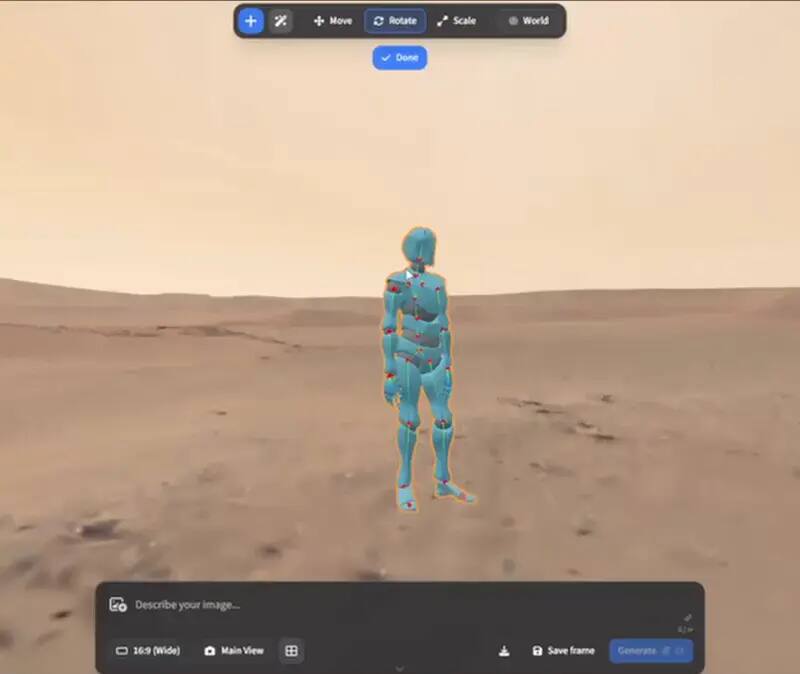
For a normal Linux desktop, the least ambiguous route is the x86_64 AppImage attached to the ArtCraft Launcher v0.4.1 release. Download the exact asset from the launcher page, compare its checksum with the published SHA256SUMS file, mark the AppImage executable, and run it on a test account or disposable project first. OpenCraftTools does not repackage the binary or host an installer mirror. The local download route only checks that the requested filename belongs to the known upstream release snapshot before redirecting you to the upstream asset. That distinction keeps the source trail visible and makes a later release update easier to audit.
The launcher is intended to give the Craft Apps family one desktop entry point. It can help a user discover, install or open projects available through its release and configuration path, but it does not turn every project into a mature Linux package. A launcher can be healthy while an individual app remains alpha, while a browser editor still depends on WebAssembly, or while an AI operation needs a separate model provider. Treat the launcher as a control surface and release channel. Evaluate the application you want to use by its own repository, version, file support, provider requirements and recovery path.
Use the Linux AppImage named on the v0.4.1 release card. Do not substitute a similarly named third-party package or an unofficial repack.
Save the download with its release version in a dedicated test folder so you can compare it with the checksum and remove it cleanly if the test is unsuccessful.
Download SHA256SUMS.txt from the same upstream release and confirm that the digest for the AppImage matches the file on disk. A matching digest proves bytes, not safety of every workflow.
Use the file manager permission control or chmod +x on the AppImage, and only do this after selecting the exact release asset.
Open the launcher without importing sensitive files, inspect the available Craft projects and note displayed versions, login requirements and download destinations.
A checksum is useful because a download can be incomplete or changed in transit, and because it lets you compare the file with the publisher’s recorded release bytes. On a typical Linux system, sha256sum artcraft-launcher-0.4.1-linux-x86_64.AppImage prints the local digest. Open the release checksum file, locate the exact filename, and compare the two strings without ignoring a character. If the asset was renamed locally, keep the original release name in the command or map the name carefully. If no matching line exists, stop and use the upstream release page rather than guessing. A match still does not audit the project source, bundled dependencies, permissions, update behavior or model provider.
The launcher path and the official ArtCraft browser path are separate. A Linux AppImage can launch a desktop component while a browser editor remains controlled by its upstream web application. Likewise, a local editor can open a file without proving that a generation step is local. ArtCraft workflows may involve external model providers, network access, provider accounts and per-run pricing. Before using a client asset, decide which parts may leave the machine, which account owns the request, and where the resulting project can be reopened. A Linux installation answer should never quietly become a privacy or cost guarantee.
If the AppImage does not start, check the release architecture, executable permission, desktop security prompt, graphics stack and the upstream issue tracker. A missing library or a sandbox policy can be an environment problem rather than a bad download. If the launcher opens but an app fails, record the app version, Linux distribution, graphics hardware, browser or runtime, and the exact action that failed. Do not replace the release with an unrelated community package until you understand the change in trust and support boundary. A workaround can be valuable for a personal experiment, but label it as a workaround rather than official Linux support.
The Linux answer should change when the upstream release changes its assets, support statement or runtime requirements. A repository issue, a social post or a search result is not enough to call a new package official. Recheck the release asset name, checksum, architecture and application behavior, then update the version and date together. If a later release adds ARM64, Flatpak or a native package, document that as a separate path rather than silently replacing the x86_64 AppImage instructions.
The most common Linux installation mistake is treating a package name as a support statement. x86_64, ARM64 and a community build can all be valid downloads while belonging to different machines, maintainers and update paths. Confirm the architecture reported by the operating system, compare it with the release asset, and keep the test outside the folder that contains important projects. A clean test also means checking how the launcher stores configuration, whether it creates a desktop entry, which app it opens after an update and whether the user can remove it without deleting project files. Write those observations beside the release tag. If the launcher needs a graphics or system library that is absent, record the exact error and check the upstream issue or documentation. Installing random compatibility libraries from a search result can change the trust boundary and make a later failure harder to reproduce. The goal is a small, repeatable Linux canary that another person can run from the same release URL, not an improvised machine-specific fix.
For a launcher test, also record whether the Linux desktop is running X11 or Wayland, which graphics driver is active and whether the AppImage is being launched from a local filesystem. These details can explain a blank window, a blocked file picker or a missing hardware acceleration path without changing the upstream asset. A clean report includes the command used, the visible error, the release URL and the result of the checksum comparison. That gives the upstream maintainer useful evidence and prevents a local workaround from being mistaken for a general platform rule.
The checked v0.4.1 release publishes a Linux x86_64 AppImage. Verify the current upstream release before installing because platform assets can change.
After verifying the exact release file, enable execute permission in the file manager or use chmod +x on that AppImage. Do not execute an unverified or unrelated download.
No. The launcher is a desktop entry point. Browser surfaces, model-provider calls, accounts, network use and pricing keep their own upstream boundaries.
It proves that the bytes match the publisher’s recorded asset. It does not replace source review, permission review, provider review or a disposable first run.
Do not assume that. Check each app’s release, browser path, file support and maturity separately, and keep a fallback for production work.